
Template
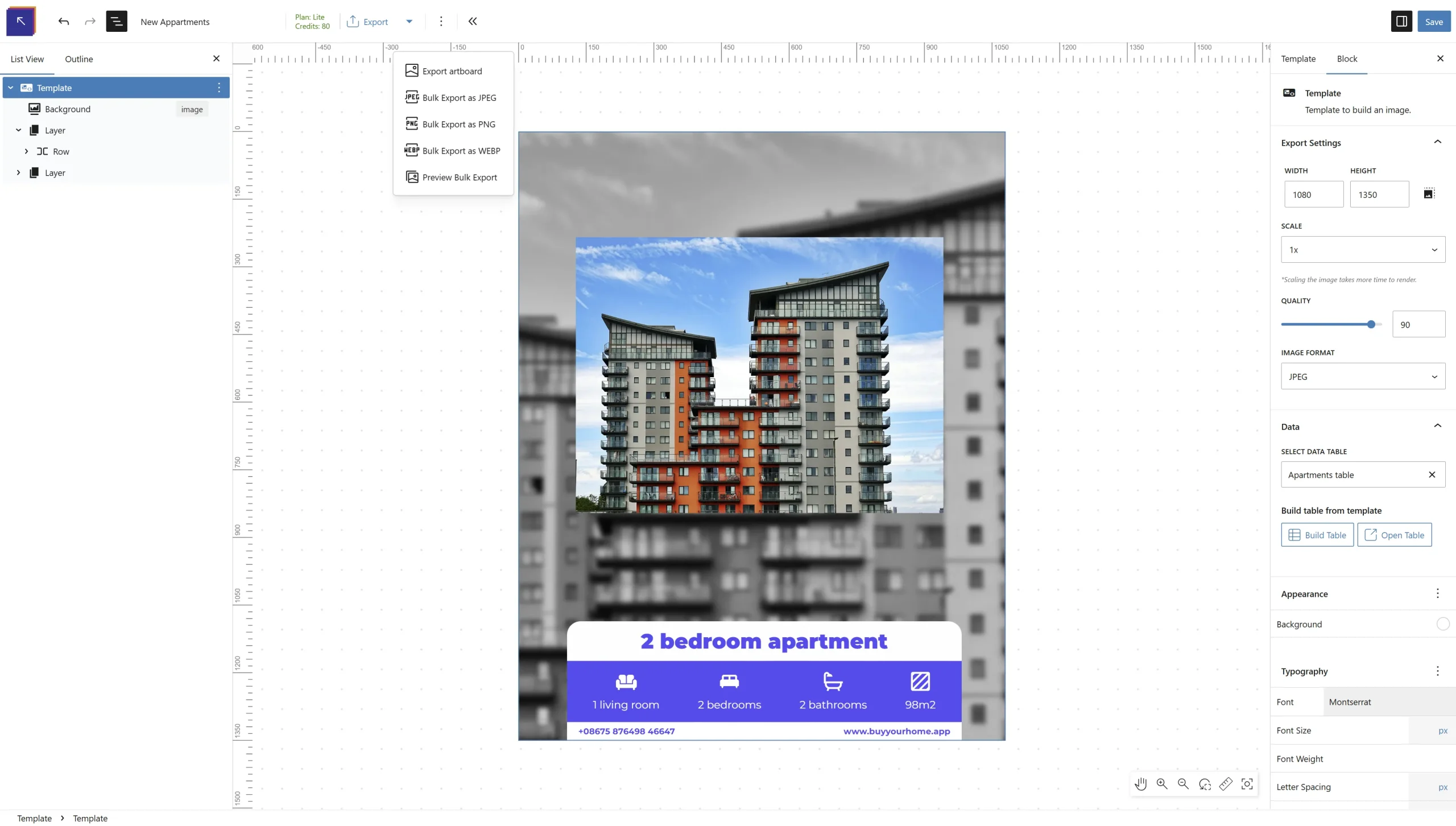
Actions
Actions on the top left bar.
Credits
Here you will see how many credits you have left that can be used to generate the new images.
Export
By clicking this button you will start the rendering and exporting process. (the default image format is jpeg).
If you want to choose another file format click on the dropdown arrow on the right of the “Export” button and choose your desired image format: JPEG, PNG, WEBP.
Or you can export a static image of the updates on the artboard.
Also you can preview the images prior to exporting them.
*This function will generate low resolution (not production ready images) so that you can check any Data Table errors or any structure errors that was not visible in the live design ex: a left align text under a centered align area. The preview images are free.
Settings
When creating a new template the first component of the page will be already there for you to start designing the image. The main root component is a template and there can be only one template per design.
To access the template settings click on the top left “Document Overview” button. On the left side panel click the template component and the settings will be shown on the right of the page under the block tab.
Width and height
First thing you need to set up is the width and the height of the image. Insert your desired width and page on the corresponding fields on the right once you have clicked on the template component. The maximum editing width/height that the app supports is 5000px.
But you can scale the image up when exporting to produce sharp detailed image.
Direct Download
Once the renders are finished and the export will finish the images will directly download as a zip folder into your computer. The images are not saved in the media library.
Zoom
This can be used to help you design your template. Does not impact the final rendering.
Data
Here you will link up your template with the data table used to export images. Under “Search Data Table” type the name of your data table and wait for the post to show up. Once you have selected the data table you are ready to export your images.
If you just finished designing your template and need the data table, after you have placed all your placeholders (ex: title, price, image) you can click on “Build Table” button to automatically generate the table based on the placeholders. Go to your Data table and fill up the table with the new images data. Now you are ready to export.
Content
A template can have these inner components:
- Background (1 per template) – a global background for the image
- Watermark (1 per template) – a global water mark that can be used to attach a repeatable image above your design.
- Layer (many) – A layer that expands the template width and height which can contain many areas inside it
To add content to the background click on the background component on the left sidebar and next click the “plus” button that will appear on the design template. Next choose beetwen a “Background”, “Watermark” or “Layer” components.