What is MerIMG and what it does in a nutshell?
MerIMG is a bulk and fast image auto-generator.
MerIMG is a specialized solution for high-speed, bulk image generation. We help organizations streamline their creative pipelines by automating repetitive design tasks, allowing teams to focus on strategy rather than execution.
How it works
- Design a Template: Create a custom, reusable blueprint once.
- Define Dynamic Placeholders: Designate elements for modification, such as titles, pricing, and background images.
- Automated Export: Import your data via table or CSV to instantly generate and export tens, hundreds, or thousands of unique images.
Getting Started
Begin your journey with our complimentary starter tier, designed to give new users full access to the MerIMG Editor. Our editor is built for efficiency, providing a comprehensive suite of features—from sophisticated typography and color management to complex blend modes—ensuring your automated assets maintain a premium aesthetic.
MerIMG Editor
The editor is user-friendly and offers a wide range of features in color, typography, images and blend modes etc.
First Step – Create a template
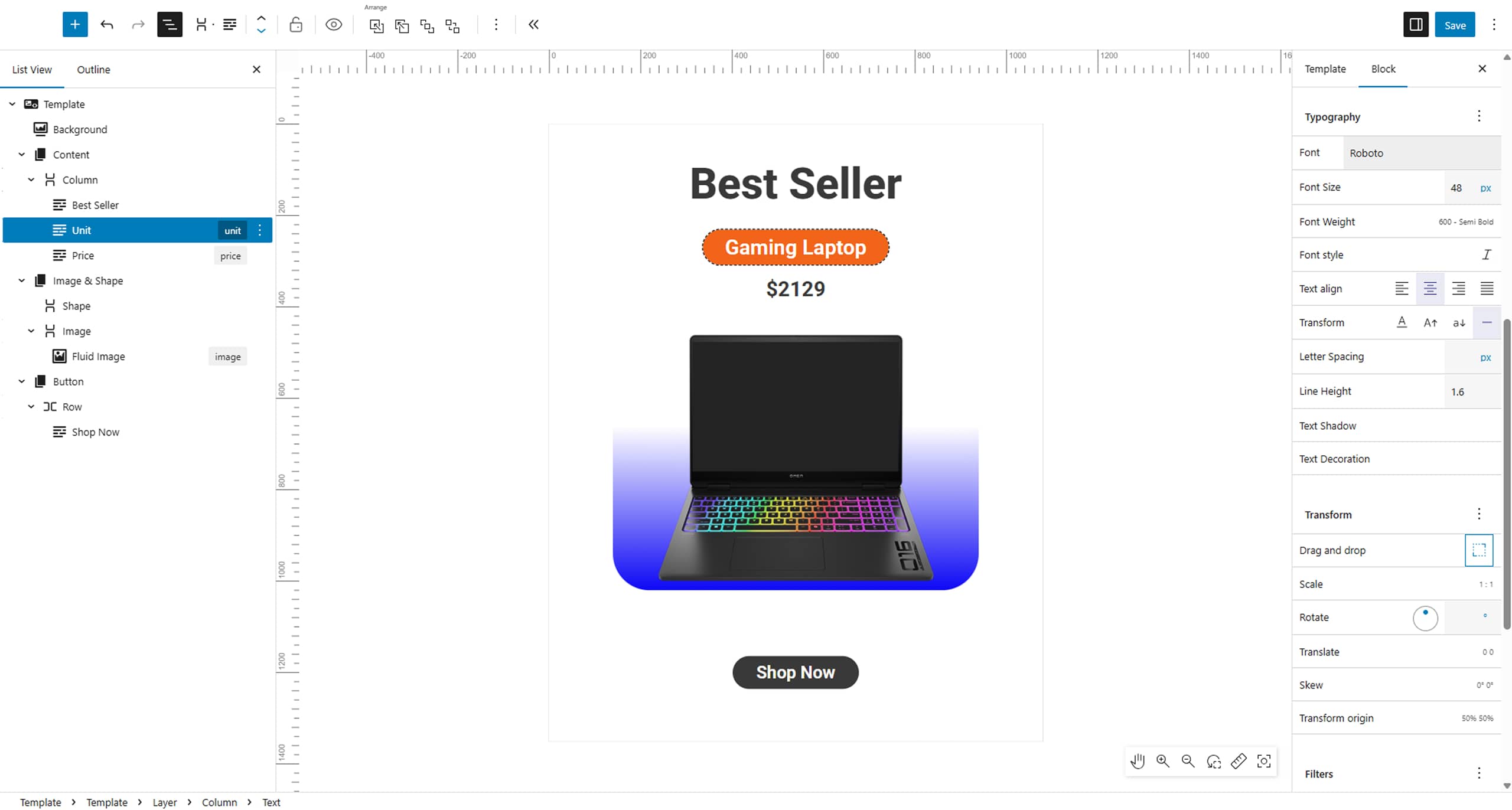
We will explore a specific design feature within the template and review the editor’s wide array of functionalities.

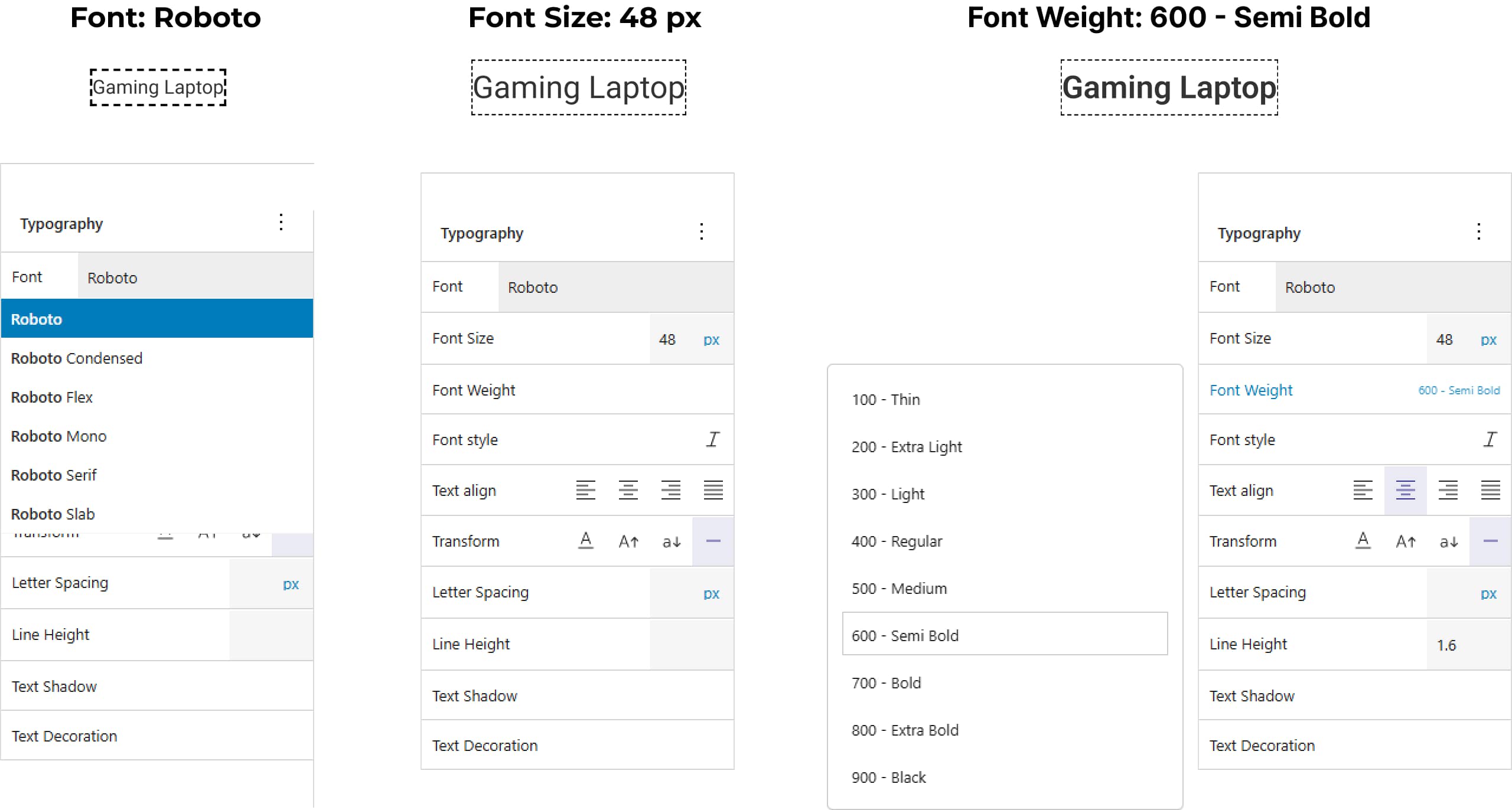
Set all Font properties
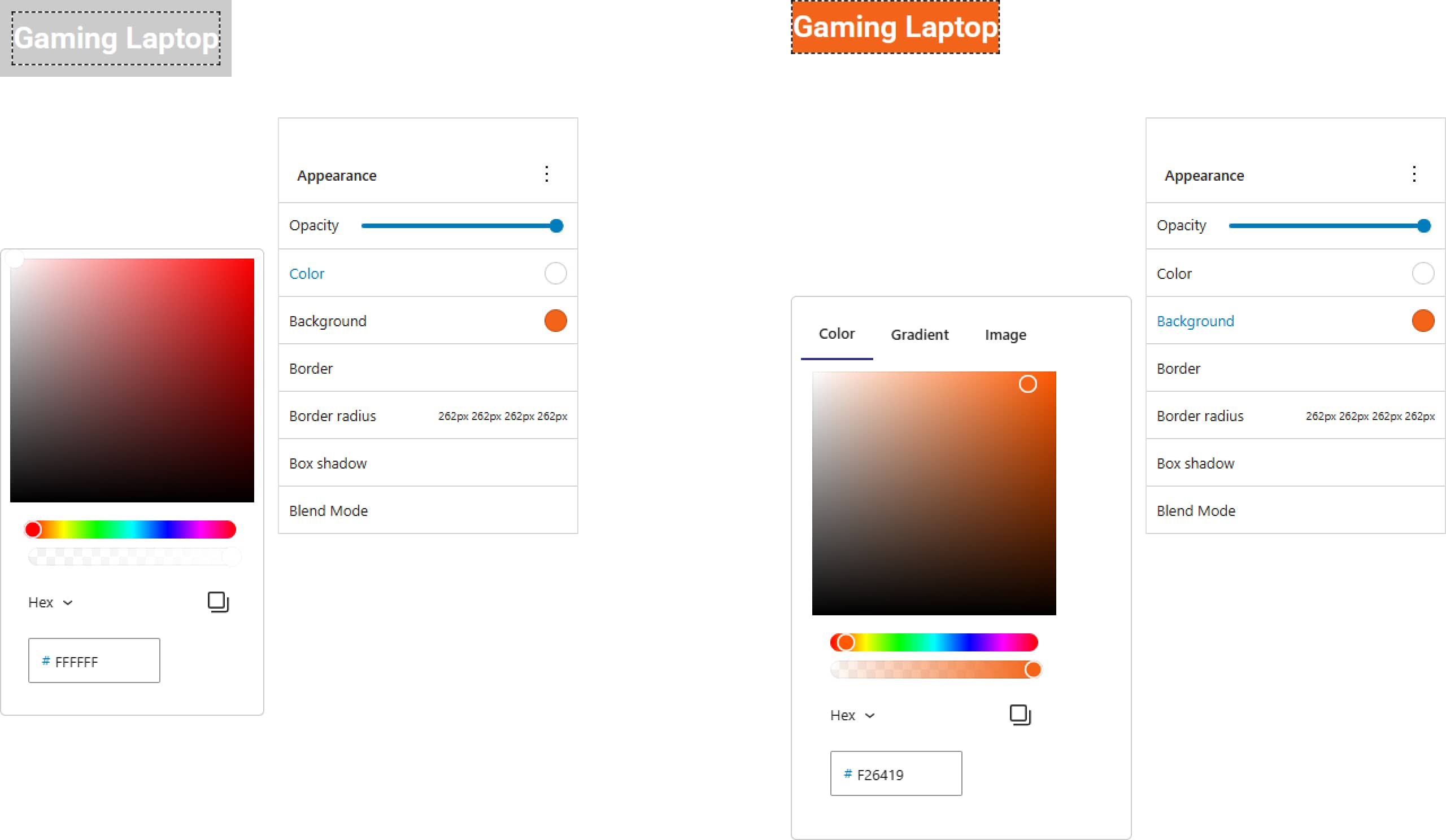
Set the text and background color of – Gaming Laptop
Use the Appearance panel to manage Color and Background configurations and update your component’s visual properties.
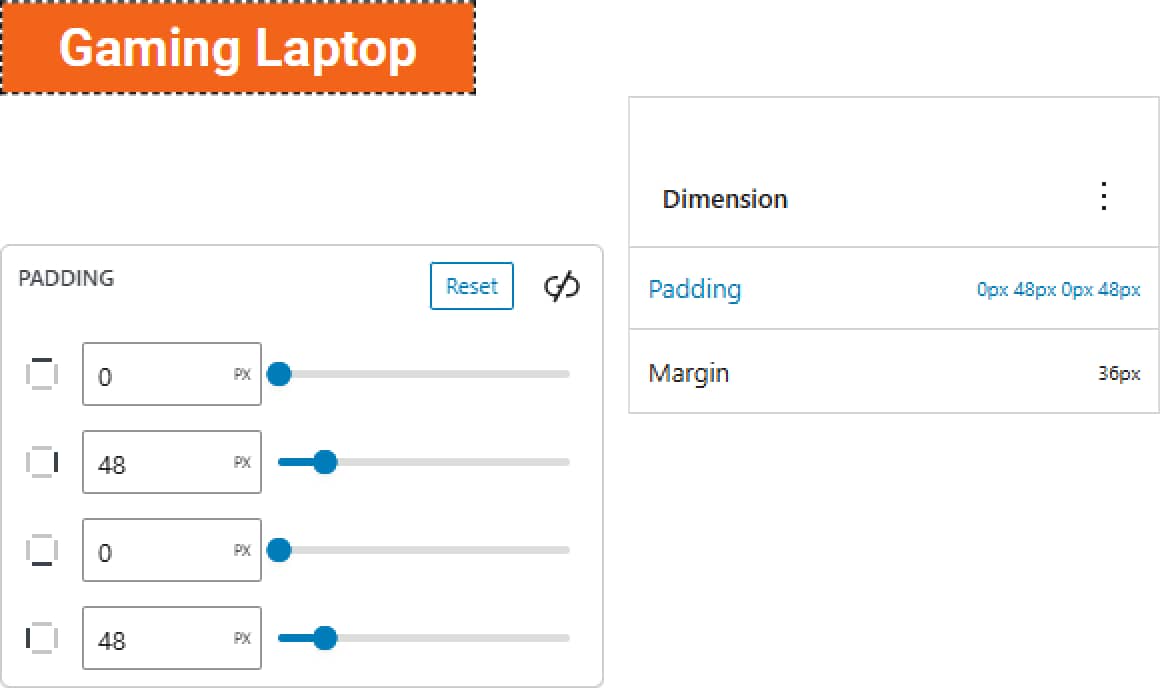
Set the padding
At the Dimension panel, the Padding is set at the tab – Padding
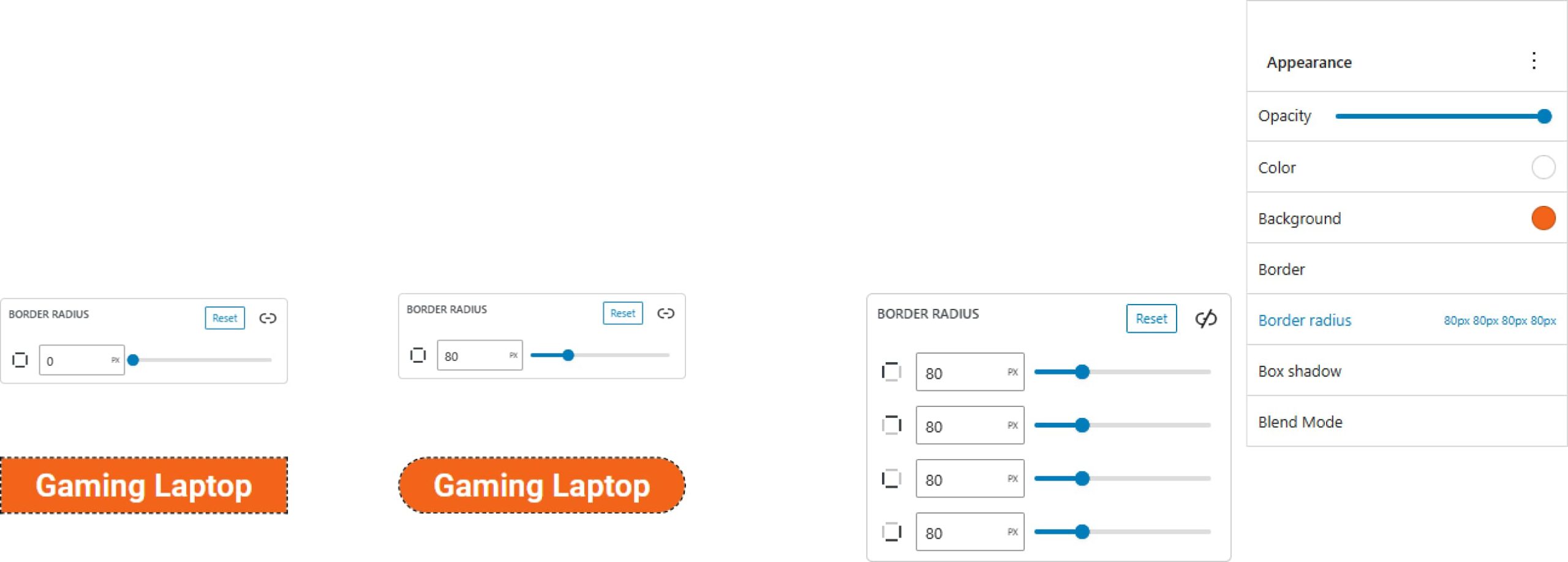
Set the the border radius
At the Appearance panel, the Border Radius
is set at the tab – Border Radius
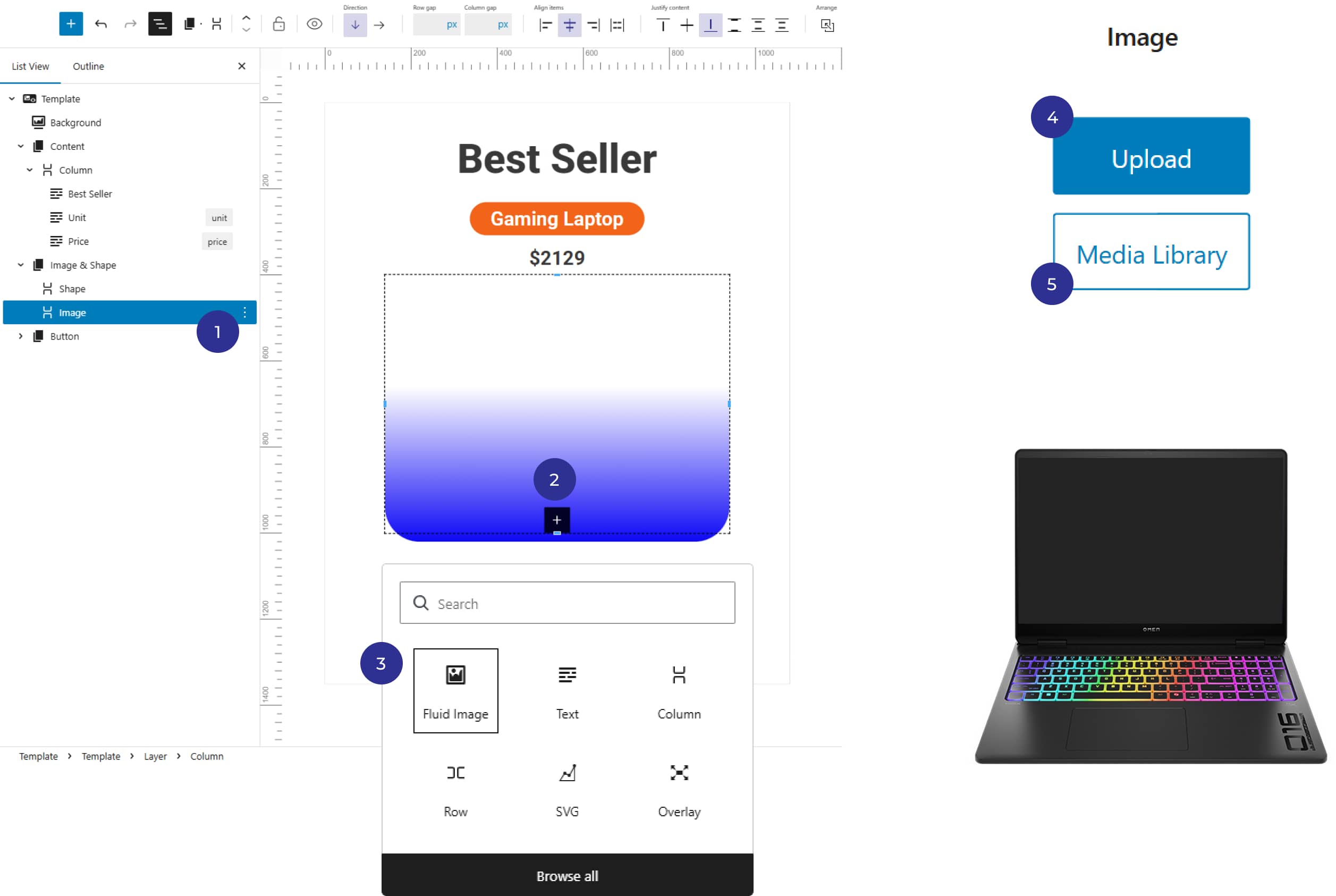
Add an Image
Select the Layer – [1] Column that you want to add the image then select the [2] + icon at the artboard. Then at the pop up menu choose [3] Fluid Image to follow up with the [4] direct Upload or to choose from [5] Media Library.
Set Placeholders
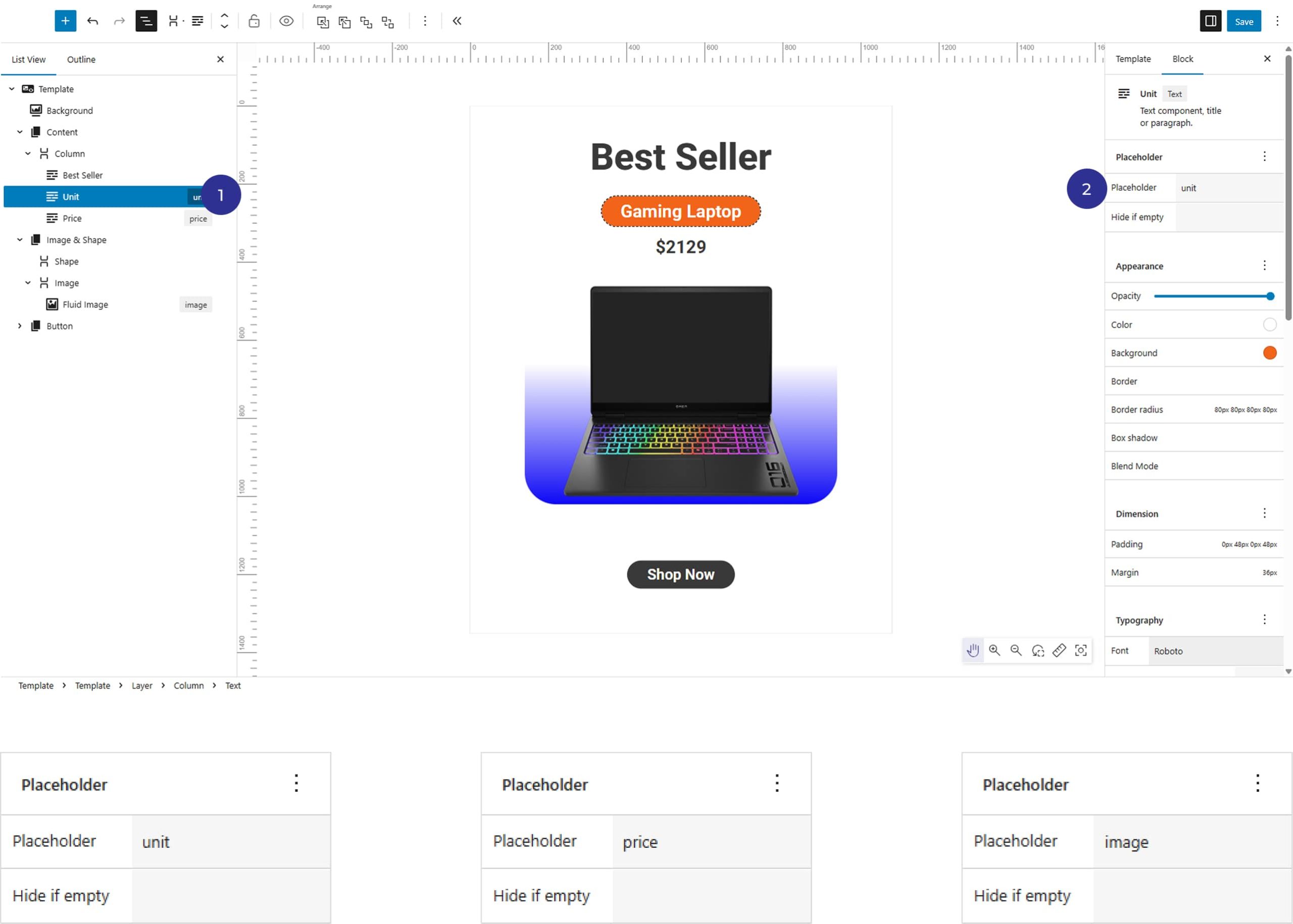
Set Placeholders for all the elements that you want to change.
Select the element in this case the – [1] text element named unit and se the placeholders at the property on the right at the [2] Placeholder Section in this case “unit”. Do the same thing for the all the changing elements that you want to make them dynamic such in this case: for the Price – “price” and the Image – “image’.
Create The Table
The final step is to create the table to complete the process of image auto-generation.
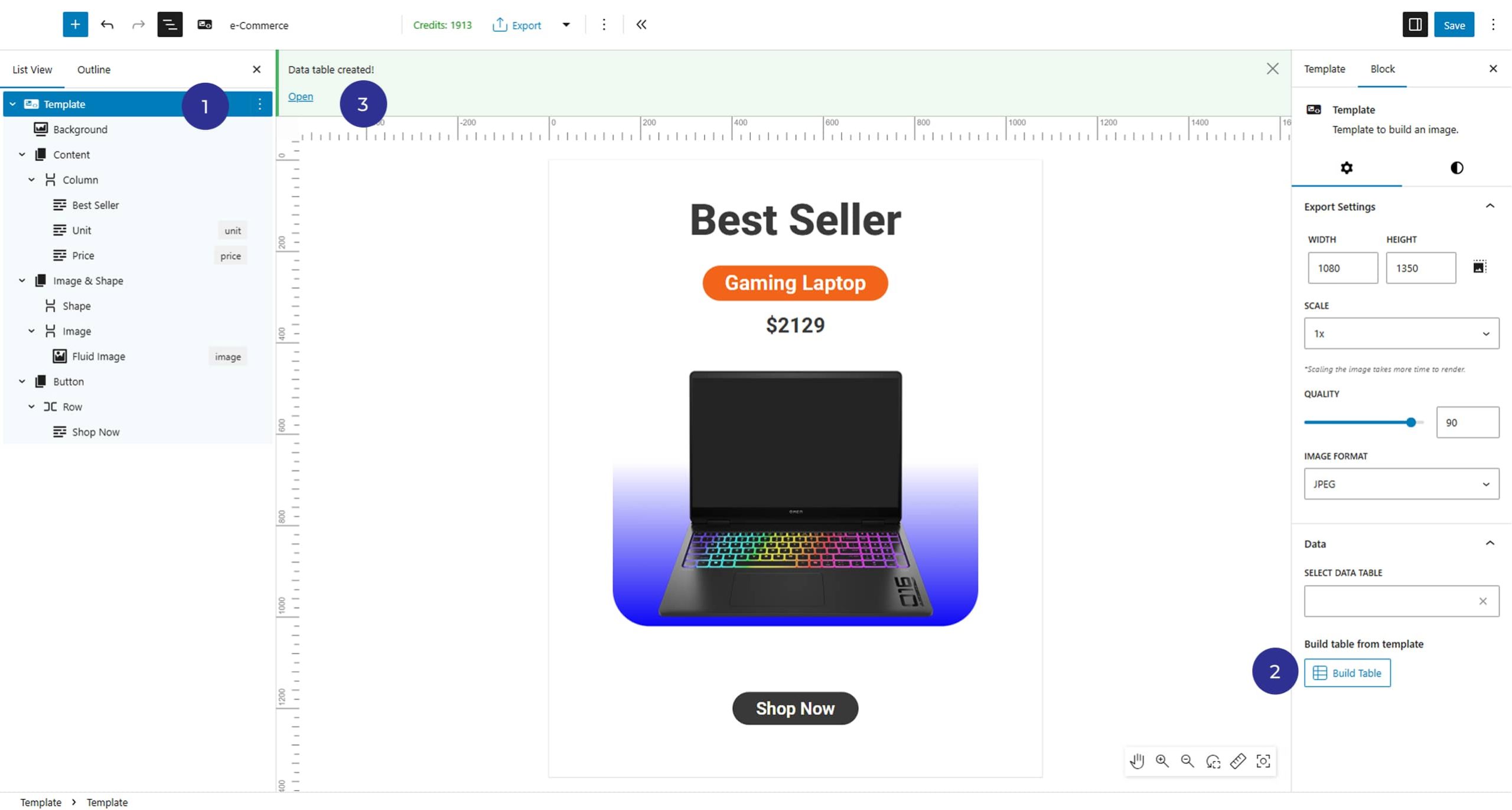
After setting all the placeholder, the next step is to select the [1] Template to show the Table option at the right and click [2] Build Table and then [3] Open it.
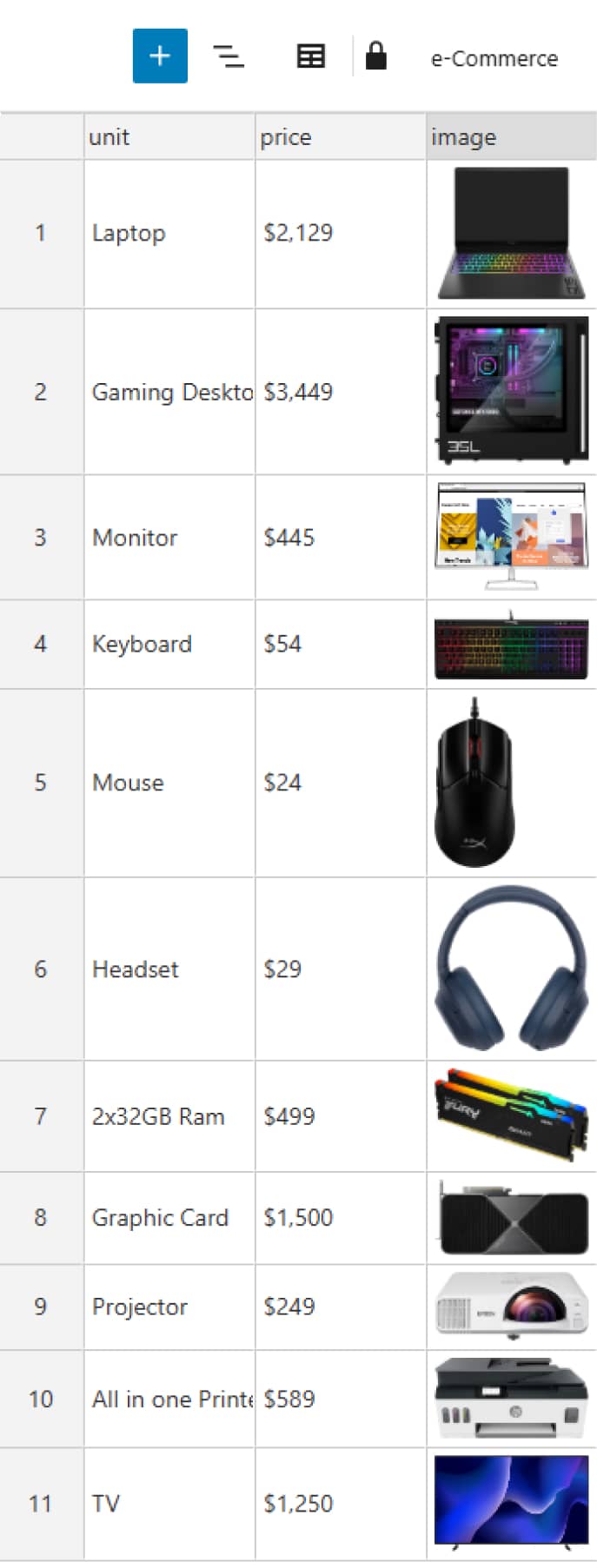
The table will appear as below with the exact placeholders as we named them for the table headers.
The following step is to fill the information that we want to change on each template so we get unique images as many as we want. Fill the “units” with the item names, “price” with the prices and “images” with the images or uploaded it if you have already made spreadsheet file.
As it can be seen below, the table provides a number of features such as Undo and Redo, Import the data, insert an image from Select or Upload Media etc.

Export
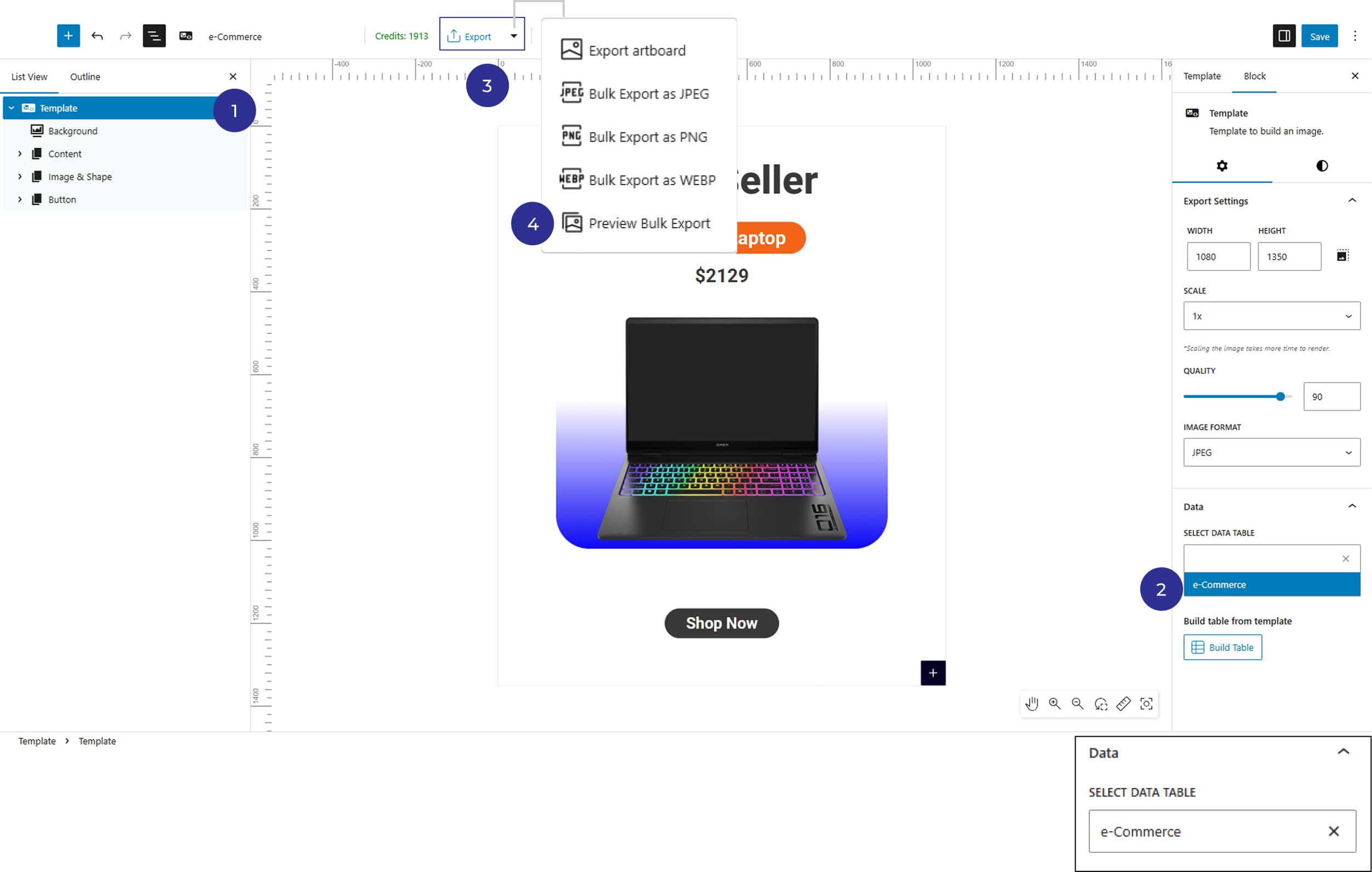
Once you create the table and save it, the last step is to go back at the template.
Select the [1] Template to show export properties and at the Data in the right you choose the [2] Table that you created previously.
The last step is to click [3] Export or you can [4] Preview a low resolution to check first.
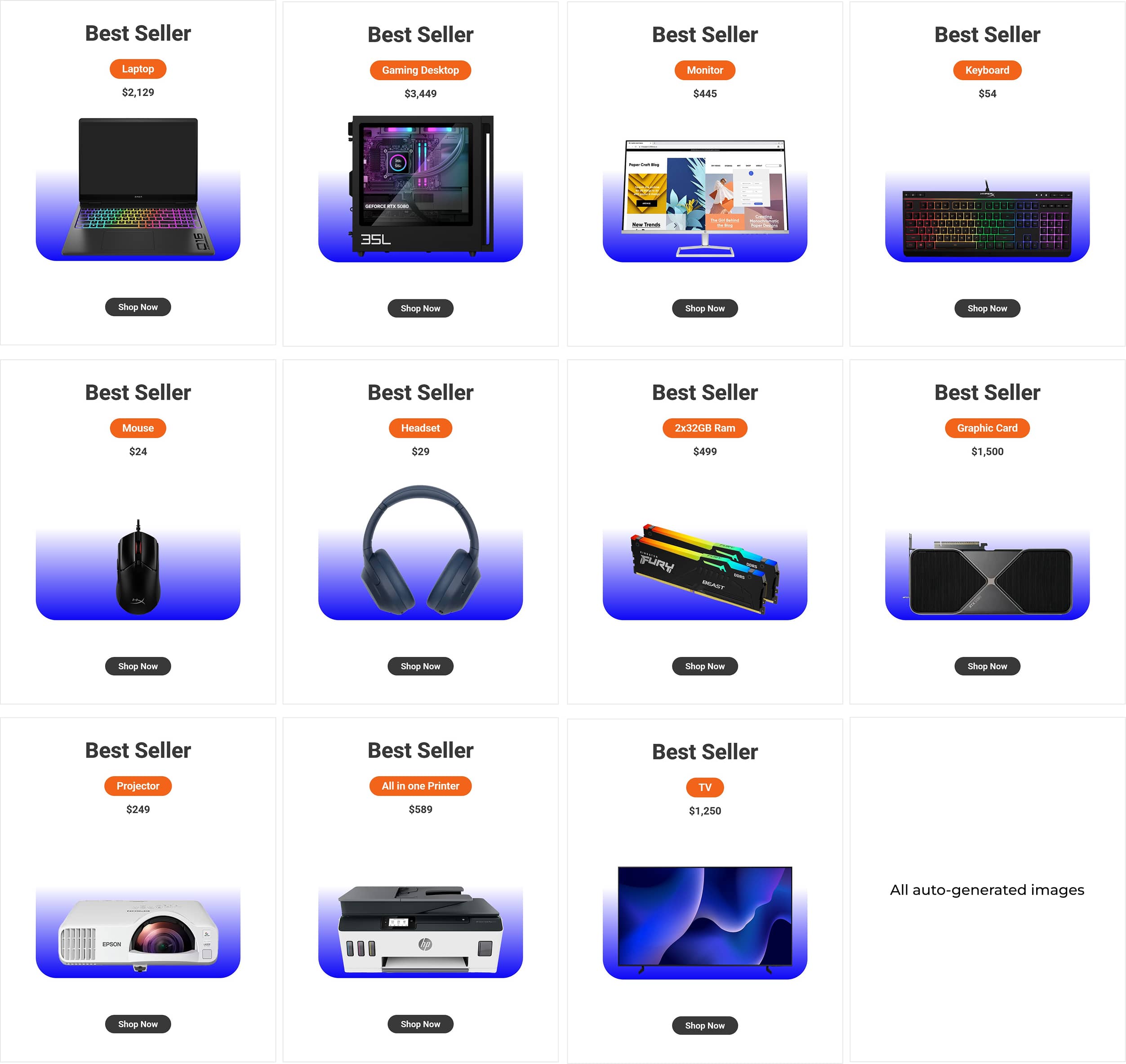
MerIMG allows users to define fixed padding for text components, ensuring layouts adapt fluidly to varying data inputs. Whether you are updating a product title or a price point, the container adjusts its dimensions while preserving your specified margins.
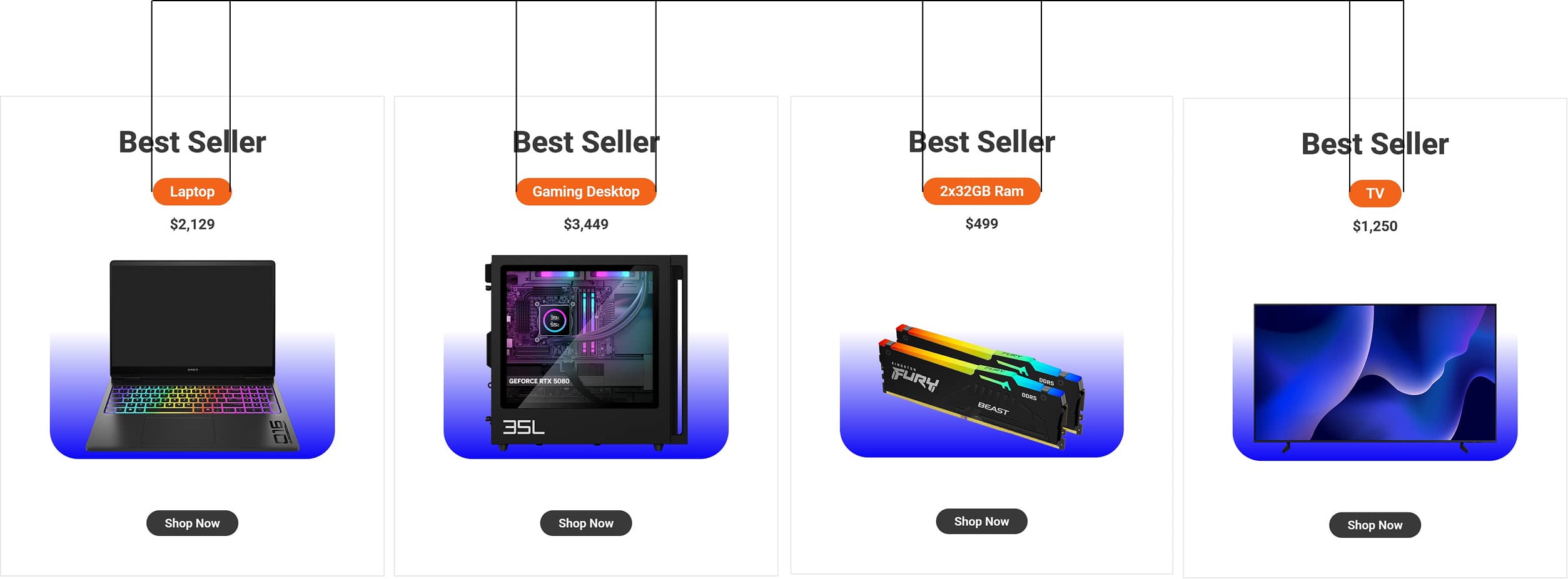
The auto-generated images below highlight this feature: each item name retains identical side-spacing, resulting in a cohesive brand aesthetic across the entire batch. This automation eliminates the need for manual resizing, delivering pixel-perfect results at scale.